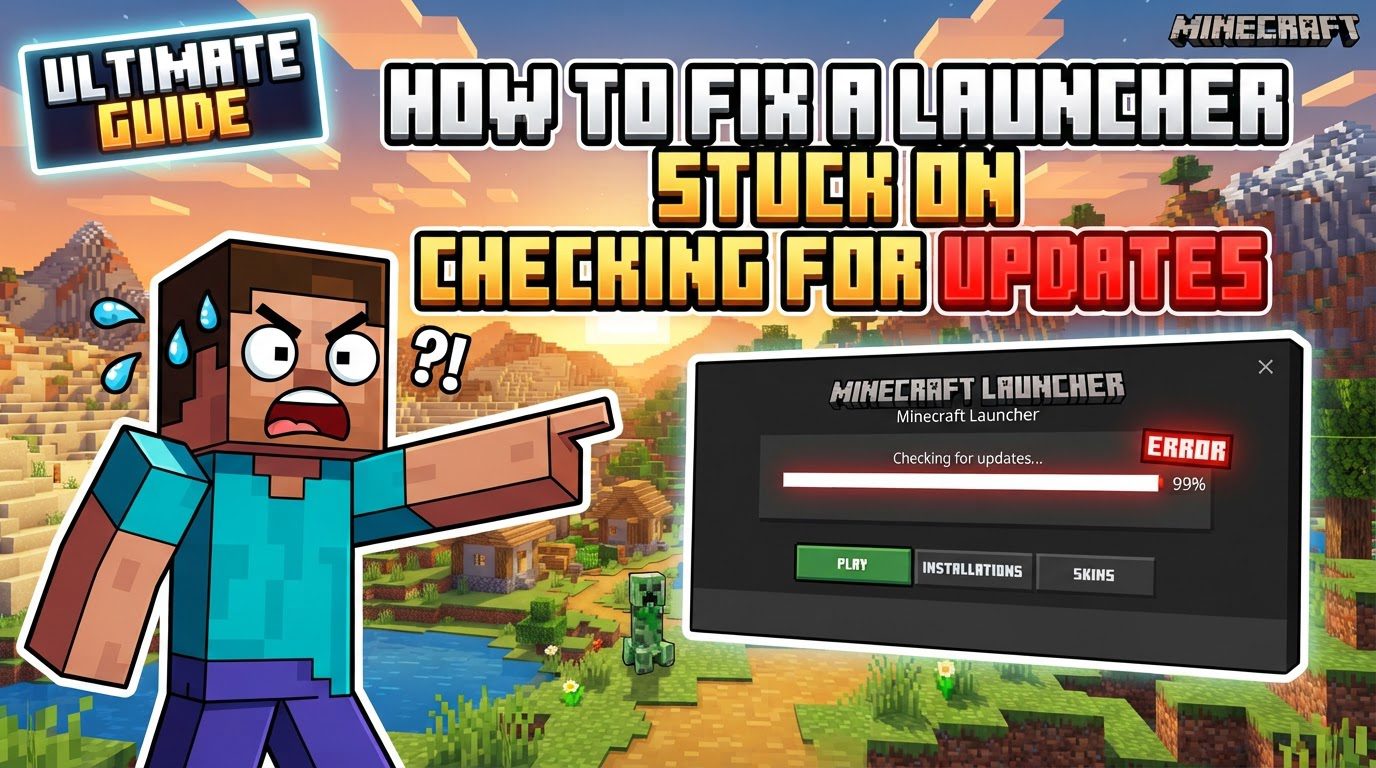
Fixing a Launcher Stuck on “checking for Updates” (Step by Step)
Encountering the Minecraft launcher stuck on “checking for updates” can be a frustrating hurdle for any player eager to dive into their blocky adventures. This common issue often stems from various underlying components that the launcher relies upon, including the Microsoft Store, Xbox App, and Gaming Services, all working in conjunction to ensure your game is up-to-date and ready to play. Problems can manifest from corrupted cache files, outdated Windows or application versions, incorrect account login, or even issues with network settings. The launcher typically checks for updates in a matter of seconds, but sometimes this check can be limited to once an hour, exacerbating the feeling of being stuck. Furthermore, the correct installation and version of Java can also play a role in the launcher’s performance and game loading.
Successfully resolving this issue often involves a systematic approach to identify and rectify the specific component causing the hang-up. Here’s a comprehensive guide to troubleshoot and fix your Minecraft launcher.
Understanding the Mechanics Behind the Update Process
-
The Minecraft launcher is intricately linked to several core Windows services and applications. Its proper functioning and ability to apply updates depend heavily on the Microsoft Store, the Xbox App, and a suite of background processes known as Gaming Services.
-
Common culprits for the “checking for updates” loop include corrupted cache files within these applications or the Windows operating system itself. Outdated versions of Windows or the associated Xbox and Microsoft Store applications can also prevent the launcher from progressing.
-
An incorrect account login across the various platforms (Minecraft Launcher, Microsoft Store, Xbox App) can lead to authentication issues, blocking the update process. Similarly, problems with your network settings, such as DNS issues or connectivity problems, can prevent the launcher from reaching the update servers.
-
While the launcher’s update check is usually swift, under certain conditions, it might only attempt this process once an hour, making diagnosis seem slow.
-
The Java installation on your system, specifically its version and whether it’s the 64-bit variant, can also significantly impact the launcher’s ability to operate correctly and load the game.
Step-by-Step Troubleshooting Guide
Follow these steps in order to systematically address potential issues causing your launcher to get stuck.
-
Manually Check for Updates Within the Minecraft Launcher: Sometimes, the simplest solution is to prompt the launcher directly. Open the Minecraft launcher, navigate to the Minecraft Bedrock Edition section, go to the installation tab, and then locate and click the “Check for Updates” button. This can sometimes kickstart the process if the automatic check has stalled.
-
Force Update via the Microsoft Store: The Microsoft Store manages many of the launcher’s dependencies. Open the Microsoft Store application, then go to your “Library” (or the “Updates” section if you’re on Windows 11). Look for “Minecraft for Windows” in your list of applications and click “Update” if an update is available. This ensures the foundational components are current and can resolve underlying update issues.
-
Run the Gaming Services Repair Tool: Gaming Services are crucial for the launcher’s operation. To access the repair tool, open the Xbox app. Click on your profile icon, then navigate to the support section, and select the “Gaming Services Repair Tool.” Running this tool can fix common issues with these essential services that might be preventing updates.
-
Repair/Reset Microsoft Store and Xbox App: Corrupted data in these apps can cause problems. Search for “Microsoft Store” or “Xbox App” in the Windows search bar. Right-click on the app and select “App settings.” First, try clicking “Terminate” to fully close the application, then click “Repair.” If the issue persists, return to the App settings and try the “Reset” option. Be aware that resetting will clear the app’s data and settings.
-
Update Windows: An outdated operating system is a common cause of software conflicts and can prevent applications from updating correctly. Go to Windows Settings, then select “Windows Update” (or “Update & Security” on older Windows versions). Click “Check for updates” and install any pending updates. A current OS ensures compatibility and incorporates necessary bug fixes.
-
Delete Microsoft Store Local Cache Files: Cached data can become corrupted over time, leading to issues. To clear it, open File Explorer and navigate to
C:\Users\Username\AppData\Local\Packages\Microsoft.WindowsStore_8wekyb3d8bbwe. Remember to replace “Username” with your actual Windows username. You might need to enable “Show hidden items” in File Explorer’s View tab to see the “AppData” folder. Once there, delete the entire “LocalCache” folder. This forces the Store to rebuild its cache from scratch. -
Run
WSRESETCommand: This command is specifically designed to reset the Microsoft Store cache. Press the Windows key + R to open the Run dialog. Typewsreset.exeand press Enter. A blank Command Prompt window will appear briefly, then close, and the Microsoft Store will automatically reopen, indicating the reset is complete. This can resolve various Store-related issues. -
Uninstall and Reinstall the Minecraft Launcher: As a more drastic but often effective step, completely uninstall the Minecraft launcher from your system. Then, download a fresh copy from the official Minecraft website or the Microsoft Store. If the standard version continues to give you trouble, consider trying the legacy version of the launcher, also available from the Minecraft website, as it sometimes bypasses issues present in newer versions.
-
Ensure Relevant Services Are Running: Several background Windows services are vital for the launcher’s proper functioning and update process. Search for “Services” in the Windows search bar and open the Services application. Check that the following services are set to “Automatic” for their startup type and are currently running: “IP Helper,” “Xbox Live Auth Manager,” “Xbox Live Game Save,” “Xbox Live Networking Service,” “Gaming Services,” “Windows Update,” and “Microsoft Store Install Service.” If any are stopped, right-click and select “Start.” If they are not set to “Automatic,” change their startup type in their properties to ensure they launch with Windows.
Important Tips for a Smooth Experience
Beyond the direct troubleshooting steps, these tips can help prevent issues and ensure your launcher functions correctly.
-
Verify Account Consistency: It is crucial that you are logged into the exact same Microsoft account that holds your Minecraft license across all relevant platforms: the Minecraft Launcher, the Microsoft Store, and the Xbox app. Mismatched accounts are a frequent cause of authentication and update failures, as the system may not recognize your ownership.
-
Check Date, Time, Time Zone, and Region Settings: Incorrect system time or region settings can interfere with secure connections to update servers. Go to Windows Date & Time settings and ensure “Set time zone automatically” and “Set time automatically” are both enabled. Click “Sync now” to synchronize your clock with an internet time server. Also, confirm that your region is correctly selected in Windows settings.
-
Update Java: Minecraft relies on Java, especially for Java Edition. Ensure you have the latest 64-bit version of Java installed on your system. An outdated or incorrect Java installation can lead to launcher instability or game loading issues, as the launcher may struggle to execute the game properly.
-
Verify TLS Settings: Transport Layer Security (TLS) settings are critical for secure communication with update servers and other online services. Open the Run dialog (Windows key + R), type
inetcpl.cpl, and press Enter to open Internet Properties. Go to the “Advanced” tab and scroll down to the Security section. Ensure that “Use TLS 1.0,” “Use TLS 1.1,” “Use TLS 1.2,” and “Use TLS 1.3” are all checked. These protocols are necessary for modern secure connections to function correctly. -
Restart Your Computer: After performing any significant update, installing new software, or making major changes to system settings or services, always restart your computer. A fresh reboot can resolve many transient issues by clearing temporary data, ensuring all pending changes are applied, and resetting system processes.
Common Mistakes to Avoid
Being aware of these common pitfalls can save you time and frustration when troubleshooting launcher issues.
-
Ignoring Windows Updates: Neglecting to keep your Windows operating system updated is a common mistake. Outdated Windows versions often lack critical bug fixes, security patches, and compatibility improvements that the Minecraft launcher and its dependencies require to function correctly and securely.
-
Not Checking Network Settings: Many users overlook their network configuration as a source of problems. Issues with internet connectivity, incorrect DNS settings, or background downloads consuming bandwidth can cause the launcher to hang indefinitely while trying to check for updates. Ensure your internet connection is stable and consider temporarily disabling VPNs or firewalls if you suspect they are interfering.
-
Mismatched Game Versions: While often an issue that arises *after* the launcher has successfully updated, trying to join a server that is running a different Minecraft version than your client can cause apparent issues or prevent you from connecting. Always ensure your game version matches that of the server you intend to play on to avoid connectivity problems.
-
Overlooking Gaming Services Issues: Problems with Gaming Services are a remarkably frequent but often overlooked cause of launcher update difficulties. These services are the backbone for many Xbox-related functionalities on PC, including the Minecraft launcher. Regularly checking their status and using the repair tool is essential for maintaining launcher health.
Tags:
YOU MAY ALSO LIKE...