How Minecraft’s parental controls have evolved
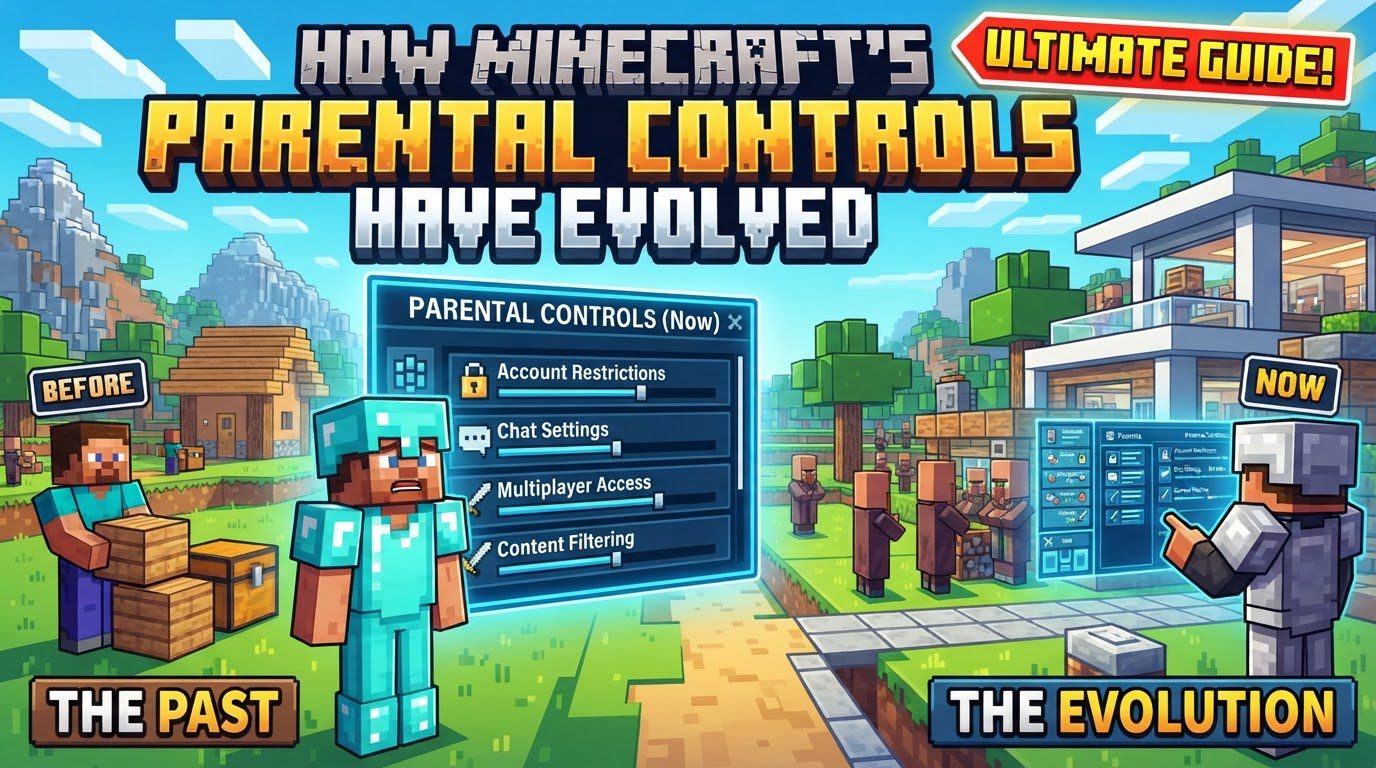
Beginning with version 1.16.4, Minecraft started to introduce dedicated player safety features, marking the initial steps in what would become a comprehensive suite of parental controls. Over the years, these mechanisms have undergone significant evolution, transitioning from scattered, in-game options to a robust, centralized system primarily managed through Microsoft accounts and the Xbox family safety infrastructure. This shift has been instrumental in providing parents with more powerful and intuitive tools to safeguard their children’s online experiences within the blocky, expansive worlds of Minecraft.
The Central Hub: Microsoft Family Safety Integration
The cornerstone of modern Minecraft parental controls lies in its deep integration with the Microsoft Family Safety ecosystem. Regardless of whether a child is playing Minecraft on a PC, console, or mobile device, most critical safety settings are now configured through the family.microsoft.com website or the convenient Xbox Family Settings app. This centralization means that parents no longer need to navigate disparate settings across multiple platforms; instead, a single, unified dashboard provides control over their child’s digital interactions.
A fundamental requirement for this system to function is that all Minecraft editions – including Bedrock, Java, Dungeons, and Realms – necessitate an Xbox Live or Microsoft account. Crucially, child accounts are automatically subject to age-appropriate restrictions based on their birthdate, typically defined as under 16 for users in the US/EU and under 19 for those in South Korea. This age gating ensures that default safety settings are applied from the outset, providing an immediate layer of protection.
Granular Control: Managing Your Child’s Minecraft Experience
The current parental control framework offers a wide array of customizable settings, empowering parents to tailor the Minecraft experience to their child’s specific needs and their family’s safety standards. These controls cover vital aspects of online interaction and content access:
- Multiplayer and Communication Controls: Parents can dictate whether their child can join multiplayer games, participate in clubs, or access Realms. Communication settings are highly flexible, allowing parents to block in-game chat entirely, restrict it to friends only, or permit it for everyone.
- Friend Management: The ability to add and remove friends within Minecraft can be controlled, preventing unauthorized connections and ensuring interactions are limited to known individuals.
- Player Reporting Tools: A significant enhancement arrived with Minecraft: Java Edition 1.19.1, introducing a player reporting tool. This feature allows users to directly report inappropriate chat messages or behavior to Minecraft moderators for review, fostering a more accountable community. Players also have the option to hide messages from specific individuals.
- Marketplace Purchases & Realms Access: Financial control is paramount. Parents can block in-game purchases altogether, set specific spending limits, or require explicit approval for any transactions through Microsoft Family Safety. Access to Minecraft Realms, which are persistent online worlds, can also be managed and restricted.
- Screen Time Limits: While Microsoft Family Safety provides overarching controls, it works in conjunction with platform-specific parental controls. Systems like Nintendo Switch’s parental controls, PlayStation’s family management, Apple Screen Time, or Google Family Link can be utilized to set daily playtime limits, ensuring a healthy balance between gaming and other activities.
- Content Restrictions: Beyond direct interactions, parents can block user-generated content, web links, and global resources. For more advanced users, control over access to mods or custom servers can also be configured, preventing exposure to potentially unsuitable third-party content.
A Timeline of Safeguards: Key Developments in Minecraft’s Parental Controls
The journey of Minecraft’s parental controls reflects a commitment to player safety that has deepened over time. The evolution can be traced through several key milestones:
- Initial Player Safety Features (Version 1.16.4): The foundation was laid with the introduction of the first dedicated player safety features in Minecraft version 1.16.4. These early implementations began addressing basic concerns about online interaction.
- Microsoft Account Migration: A pivotal moment was the migration of traditional Mojang accounts to Microsoft accounts. This strategic move centralized the management of all parental controls under the Microsoft Family Safety system, streamlining the process for parents and making controls more robust and consistent across platforms.
- Enhanced Reporting in Java Edition (1.19.1): The introduction of the player reporting tool in Java Edition 1.19.1 was a significant leap forward. It provided a direct, in-game mechanism for players to flag misconduct, empowering the community to contribute to a safer environment and giving moderators the tools to enforce rules effectively.
- Dedicated Apps for Convenience: The development and refinement of the Xbox Family Settings app have dramatically improved the accessibility and ease of managing controls. Parents can now quickly change settings remotely from their smartphones, offering unprecedented flexibility.
- Bedrock vs. Java Control Disparity: It’s important to note the difference in control robustness between editions. Minecraft: Bedrock Edition, designed for broader cross-platform play, generally offers more comprehensive built-in safety features and parental controls, particularly concerning chat filtering and Realms management, compared to the more open-ended Java Edition.
Establishing Boundaries: A Practical Setup Guide
Setting up these safeguards effectively requires a few straightforward steps, primarily centered around the Microsoft Family Group:
- Create Microsoft Family Group: The parental journey begins with a parent creating a Microsoft account and subsequently establishing a Microsoft Family Group. The child’s Microsoft account must then be added to this group (or created if they don’t have one), ensuring their correct birthdate is entered to enable age-appropriate restrictions.
- Access Settings: Once the family group is established, the parent should sign in with their Microsoft account on family.microsoft.com or use the Xbox Family Settings app.
- Configure Online Safety & Privacy: Navigate to the child’s profile within the family settings. Under the “Online Safety” and “Privacy” tabs, key settings can be adjusted. These include options like “You can join multiplayer games” (Allow/Block), “Others can communicate with voice, text, or invites” (Everyone/Friends/Block), “You can add friends on Xbox Live” (Allow/Block), and “You can create and join clubs” (Allow/Block).
- Manage Spending: Still within the child’s profile, access the “Money” section. Here, parents can toggle “Needs approval to buy things” or set specific spending limits to control in-game purchases.
- Platform-Specific Controls: For gaming on consoles (e.g., Nintendo Switch, PlayStation) or mobile devices (iOS, Android), it’s crucial to also configure their respective parental control settings. These often provide additional layers of control, such as playtime limits, which complement the Microsoft Family Safety settings.
- Apply Changes: For the settings to take effect, ensure Minecraft is closed. Sign out of Minecraft and restart the game after making changes.
Proactive Parenting: Essential Tips for Ongoing Safety
Implementing parental controls is an ongoing process that benefits from vigilance and open communication:
- Regular Review: Periodically check parental control settings, especially after major game or platform updates. Updates may sometimes reset or alter control configurations.
- Keep Software Updated: Ensure both Minecraft and any associated mods or launchers are kept up-to-date. This guarantees access to the newest security fixes and player safety features.
- Combine Controls: Employ a multi-layered approach by utilizing platform-specific parental controls (e.g., console settings, screen time apps) in conjunction with Microsoft Family Safety.
- Open Communication: Foster an environment of trust by openly discussing online safety and boundaries with your children. Encourage them to report any uncomfortable or inappropriate interactions they encounter.
- Monitor Activity: While not intrusive, periodic monitoring of your child’s in-game activity, including the servers they join and their interactions, can provide valuable insights.
- Private Realms: For younger children, private Realms with a curated list of known and trusted friends offer a significantly safer environment than public, unrestricted servers.
Avoiding Pitfalls: Common Mistakes in Parental Control Management
Even with robust systems in place, parents can inadvertently make errors that compromise safety:
- Not Setting Up Microsoft Family: The most significant oversight is failing to create a Microsoft Family Group and link child accounts. This is the foundational step, as most Minecraft controls flow directly through this system.
- Ignoring Updates: Neglecting to review settings after game or platform updates can lead to controls reverting to default or new vulnerabilities emerging.
- Mismatching Account Ages: Incorrect birthdates on Microsoft/Xbox accounts can hinder the proper application of age-appropriate parental controls or cause unexpected access issues.
- Overlooking Platform-Specific Settings: Relying solely on Microsoft Family Safety without configuring additional controls on consoles (Switch, PlayStation) or mobile devices leaves gaps in the protective shield.
- Underestimating Workarounds: Tech-savvy children, particularly teens, may discover ways around controls. This necessitates ongoing monitoring, discussion, and adaptation of strategies.
- Confusing Java and Bedrock: Parents often don’t realize that Java Edition generally has fewer built-in parental controls compared to Bedrock Edition. Understanding this distinction is crucial for effective management of each version.
The Evolving Landscape of Digital Guardianship
Minecraft’s journey from a simple sandbox game to a global phenomenon has been paralleled by the evolution of its parental controls. What began as basic safety features has matured into a sophisticated, centralized system designed to empower parents and protect players. By understanding and utilizing these evolving tools, coupled with open communication and proactive monitoring, parents can ensure their children enjoy the creative and social benefits of Minecraft in a secure and controlled environment.
Tags:
YOU MAY ALSO LIKE...