Enabling Cross-platform Friend Invites, Explained
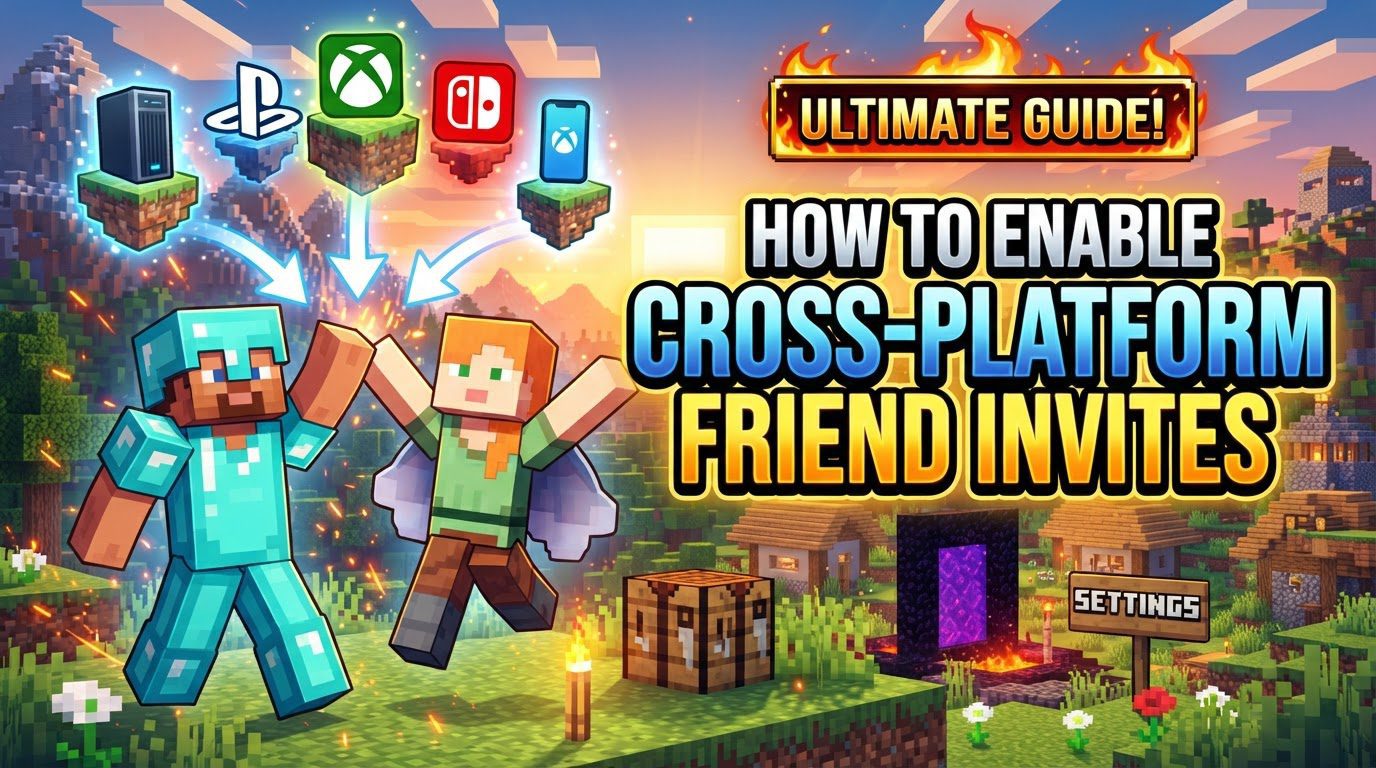
Minecraft’s appeal lies not only in its expansive, blocky worlds but also in its ability to bring players together. For those looking to connect with friends across different gaming platforms, understanding the nuances of cross-platform friend invites is crucial. The key to seamless multiplayer experiences across various devices lies predominantly with the Minecraft Bedrock Edition, which is specifically engineered to facilitate this interconnected play. While the Java Edition remains a beloved version, particularly within the modding community, it does not inherently support direct cross-platform play with Bedrock Edition players without the integration of third-party plugins.
Key Mechanics for Cross-Platform Play
To successfully invite and play with friends on different devices, several fundamental mechanics must be understood and correctly configured within Minecraft Bedrock Edition. These elements form the backbone of the cross-platform experience.
- Minecraft Bedrock Edition is essential: The Bedrock Edition of Minecraft is the cornerstone of all cross-platform multiplayer functionality. It is a unified version of the game available across a wide array of devices, including Windows 10/11 PCs, Xbox consoles, PlayStation consoles, Nintendo Switch, iOS devices, and Android smartphones and tablets. This universal availability ensures that players on any of these platforms can connect and play together. In stark contrast, the Java Edition, which is exclusive to PC, lacks this native cross-platform capability with Bedrock. Should Java Edition players wish to connect with Bedrock players, they would typically need to utilize external, third-party server plugins such as GeyserMC, which bridge the gap between the two distinct game versions. For native and straightforward cross-platform invites, ensuring all participants are on the Bedrock Edition is the first and most critical step.
- Microsoft Account: A Microsoft or Xbox account serves as the universal identifier for all players engaging in cross-platform activities within the Bedrock Edition. Regardless of the device being used-be it a PlayStation, Nintendo Switch, or a mobile phone-every player must be signed in with a Microsoft account. This account is indispensable for accessing cross-platform features, including the ability to add friends, send and receive game invites, and join multiplayer sessions. It acts as the central hub that links all players in the Bedrock ecosystem, transcending specific console or device identities. If a player does not already possess a Microsoft account, they will need to create one to fully participate in cross-platform multiplayer.
- Multiplayer Settings: Beyond having the correct game edition and a linked Microsoft account, the in-game and world settings must be appropriately configured to allow multiplayer interactions. This involves ensuring that multiplayer functionality is enabled both within the general game settings and specifically within the settings of the world you intend to play in. These settings control who can join your world and under what conditions, providing essential control over your multiplayer experience.
Step-by-Step Process for Enabling Cross-Platform Friend Invites
Once you understand the core mechanics, the process of inviting friends across platforms becomes straightforward. Follow these steps to set up your cross-platform gaming session:
- Ensure Bedrock Edition: The very first step is to confirm that all players involved are using the Minecraft Bedrock Edition. Additionally, it is vital that everyone has the absolute latest game version installed. Outdated versions can lead to compatibility issues, preventing players from seeing each other’s invites or joining worlds. Regular updates ensure access to the newest features and fixes, enhancing the multiplayer experience.
- Sign In with Microsoft Account: Upon launching Minecraft Bedrock Edition, you will need to sign in with your Microsoft account. Look for the sign-in option, often presented prominently on the main menu. If you do not have a Microsoft account, the game will usually provide a prompt or a link to create one. This step is non-negotiable for accessing cross-platform features and connecting with friends.
-
Add Friends:
- Navigate to the “Play” menu from the main title screen.
- Select the “Friends” tab, typically located at the top of the screen.
- Look for an option such as “Add Friends” or “Find Cross-Platform Friends.”
- In the provided input field, enter your friend’s Microsoft/Xbox Gamertag. It is crucial to use their Gamertag, which is their unique identifier within the Xbox network, rather than any platform-specific ID they might have (like a PlayStation Network ID or Nintendo Switch Friend Code).
- Send the friend request and await their acceptance. Once accepted, your friend will appear in your in-game friends list.
-
Enable Multiplayer in World Settings: Before your friends can join your world, you must ensure multiplayer is enabled within that specific world’s settings.
- Access the world’s settings. This can be done either before loading the world (by editing it from the “Play” menu) or during gameplay by pausing the game and navigating to the settings.
- Go to the “Multiplayer” tab within the world settings.
- Ensure that the “Multiplayer Game” toggle is set to “On.”
- You can then set the permission level for your world:
- “Friends Only”: Only players on your Minecraft friends list can join.
- “Friends of Friends”: Allows friends of your friends to join, expanding the potential player pool.
- “Invite Only”: Only players you explicitly invite can join, offering the most control.
-
Invite to Game: Once you are in a world where multiplayer is enabled, you can send invites to your friends.
- Open the game menu (often by pressing the Escape key on PC, the Menu button on Xbox, the Options button on PlayStation, or the Plus button on Nintendo Switch).
- Select the “Invite to Game” option.
- A list of your online friends will appear. Choose the friends you wish to invite and send them the game invite. You can invite a maximum of eight friends to join your world.
-
Joining a Friend’s Game: For your friends, joining is equally simple.
- They will receive an invite notification which they can accept directly.
- Alternatively, they can navigate to the “Play” menu and then the “Friends” tab. Any joinable games hosted by their friends will be listed there, allowing them to select and join an active session.
Important Tips for a Smooth Cross-Platform Experience
To avoid common frustrations and ensure a smooth cross-platform gaming experience, keep these important tips in mind:
- Gamertags are paramount: Always, without exception, use your friend’s Microsoft/Xbox Gamertag when adding them for cross-platform play. This is the universal identifier that works across all Bedrock platforms. Attempting to use platform-specific IDs like a PlayStation Network ID (PSN ID) or a Nintendo Switch Friend Code will not work for cross-platform friend requests within Minecraft Bedrock Edition. Double-check that you have the correct Gamertag to prevent failed friend requests.
- Online Services Subscriptions: For players on console platforms such as Xbox, PlayStation, and Nintendo Switch, an active subscription to their respective platform’s online service is typically required to access any form of online multiplayer, including Minecraft’s cross-platform capabilities. This means Xbox players need Xbox Live Gold, PlayStation players need PlayStation Plus, and Nintendo Switch players need Nintendo Switch Online. These subscriptions are separate from your Microsoft account and are necessary for the console itself to connect to online services.
- Privacy Settings: Ensure that your device’s and, more importantly, your Microsoft account’s privacy settings are configured to allow multiplayer and cross-network play. This is especially critical for child accounts, which often have stricter default privacy settings. You may need to visit the Microsoft account privacy dashboard online to adjust these settings to permit online interactions and cross-platform communication. Incorrect privacy settings can inadvertently block friend invites and multiplayer access.
Common Mistakes to Avoid
Being aware of common pitfalls can save you time and frustration when setting up cross-platform play:
- Using Java Edition for Cross-Play: One of the most frequent misconceptions is attempting to directly invite or join friends between the Java Edition and Bedrock Edition. These are fundamentally different versions of the game. Native cross-platform invites between them are not supported. If you and your friends are on different editions (one on Java, one on Bedrock), you will need to utilize a third-party server plugin like GeyserMC on a Java server to bridge the connection. Otherwise, all players must be on the Bedrock Edition for direct cross-platform invites to function.
- Outdated Game Versions: Failing to update Minecraft Bedrock Edition to its latest version is a common cause of connectivity issues. Incompatible game versions between players will prevent invites from being sent or accepted, and worlds from being joined. Always ensure that all players involved have the most recent update installed before attempting to connect.
- Incorrect Account Sign-In: Not being signed into a Microsoft account, or encountering issues with the account itself (such as a temporary server problem or a login glitch), can severely hinder cross-play functionality. Without a proper Microsoft account sign-in, the game cannot identify you on the cross-platform network, thus preventing friend invites and multiplayer access. If you suspect an account issue, try signing out of your Microsoft account within Minecraft and then signing back in to refresh the connection.
- Multiplayer Disabled: Forgetting to enable the “Multiplayer Game” toggle within your world settings is a surprisingly common oversight. Even if all other steps are correctly followed, if this setting is off, no one will be able to join your world, and your invites will be ineffective. Always double-check this setting before inviting friends.
- Platform-Specific IDs for Cross-Platform Invites: As repeatedly emphasized, using console-specific IDs (such as a PlayStation Network ID, Nintendo Switch Friend Code, or even a local Xbox username) instead of the Microsoft/Xbox Gamertag for adding friends in a cross-platform context will not work. The Gamertag is the only identifier recognized across the Bedrock Edition’s unified network for friend management. Ensure you obtain the correct Gamertag from your friends.
Tags:
YOU MAY ALSO LIKE...