Modifying Entity NBT Using the Data Command (Step by Step)
In Minecraft Java Edition, the /data command is an incredibly powerful tool for advanced players, mapmakers, and server administrators. It grants direct access to the Named Binary Tag (NBT) data of entities, block entities, and NBT storage, allowing for unprecedented levels of customization and dynamic gameplay mechanics. Understanding and utilizing this command can transform your world, giving you fine-grained control over virtually every aspect of a game object’s properties.
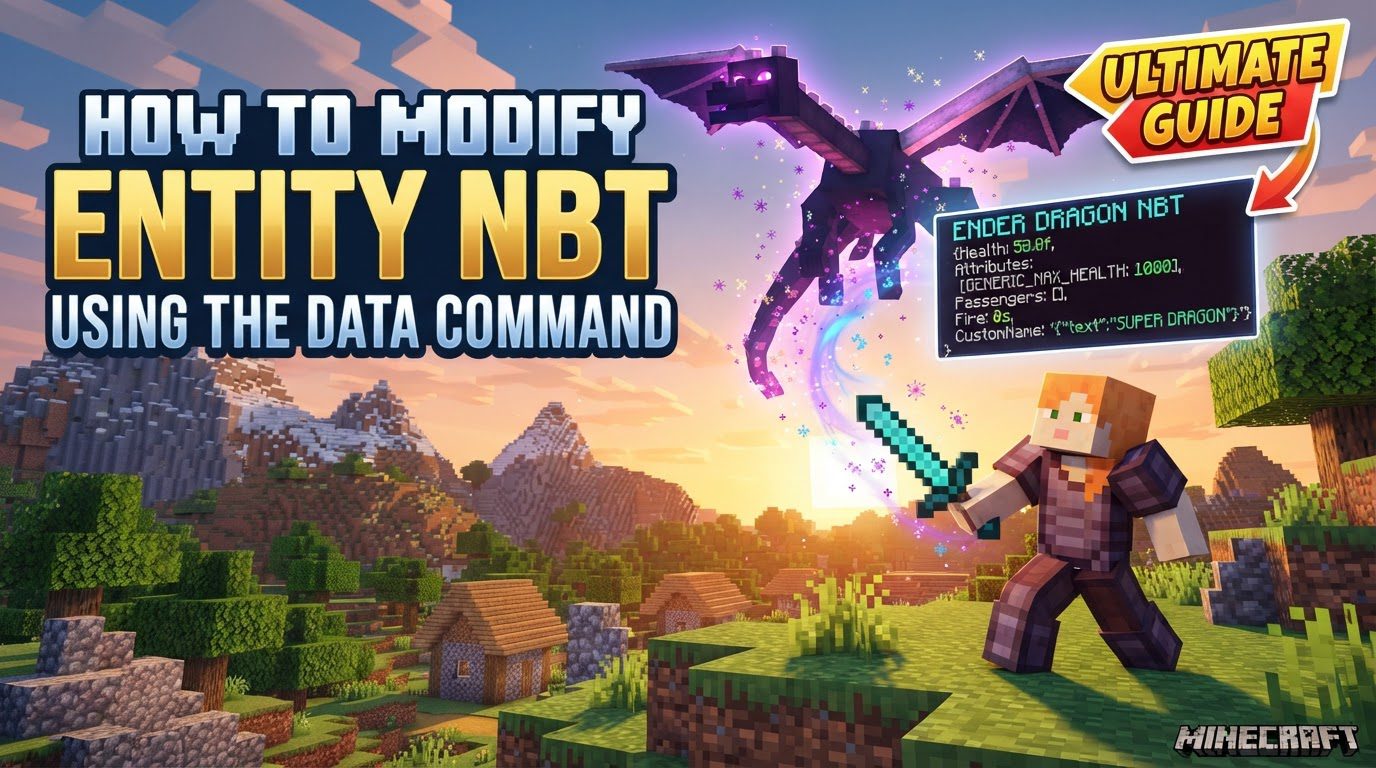
NBT data itself is a hierarchical structure, functioning like a complex, nested dictionary or JSON object. It stores all the extra, non-block-state information about an entity – everything from its health and motion to its inventory contents, custom name, and even its artificial intelligence (AI) state. The /data command provides four core subcommands: get, merge, modify, and remove, each offering a distinct way to interact with this underlying data. It’s crucial to note that this command is exclusive to Minecraft Java Edition; it is not available in Bedrock Edition. Furthermore, a significant limitation is that you cannot directly modify player NBT data using /data merge or /data modify; player attributes must be adjusted through specific commands like /effect or /xp.
Step-by-Step Process for Modifying Entity NBT
To effectively modify an entity’s NBT data, follow these systematic steps:
1. Identify the Target Entity
The first and most critical step is to precisely define which entity or entities you intend to modify. Minecraft’s entity selectors are your primary tool for this:
@e: Targets all entities.@s: Targets the command-executing entity.@p: Targets the nearest player.@r: Targets a random player.
For commands like /data merge and /data modify, which can have significant impacts, it is highly recommended to limit your selector to a single entity, especially during testing or for specific applications. Appending arguments like limit=1,sort=nearest to your selector (e.g., @e[type=pig,limit=1,sort=nearest]) will ensure that only the closest matching entity is affected, preventing unintended broad changes across your world.
2. Inspect Existing NBT (Optional but Recommended)
Before making any changes, it’s incredibly beneficial to understand the current NBT structure of your target entity. This can be done using the /data get subcommand:
-
Command:
/data get entity <target_selector> [<path>]
By executing this command, you can view the entity’s complete NBT data or a specific part of it by providing an optional NBT path. This inspection helps you identify the exact tags you wish to change, their current values, and their data types, which is essential for constructing correct modification commands.
3. Choose the Appropriate Subcommand
Depending on the nature and precision of the modification you wish to perform, you will select one of the following subcommands:
/data merge entity <target_selector> <nbt_compound>
This subcommand is used for combining a provided NBT compound with the entity’s existing NBT data. When you use merge:
- New tags present in your provided compound but not in the entity’s NBT will be added.
- Existing tags in the entity’s NBT that match tags in your compound will be overwritten with the new values.
- Tags in the entity’s NBT that are not present in your compound will remain unchanged.
Example: /data merge entity @e[type=pig,limit=1,sort=nearest] {Invulnerable:1b,Motion:[0d,1d,0d]}
This command would make the nearest pig invulnerable (Invulnerable:1b, where 1b denotes a byte value for true) and give it an initial upward velocity (Motion:[0d,1d,0d], where 0d and 1d denote double values for X, Y, and Z motion respectively).
/data modify entity <target_selector> <targetPath> <action> <source>
The modify subcommand offers more granular control, allowing you to alter a specific NBT tag at a precise location within the entity’s data structure. It requires specifying a <targetPath>, an <action>, and a <source>.
-
<targetPath>: This defines the exact NBT tag you want to modify. Examples include:Health: The entity’s current health.Pos[1]: The entity’s Y-coordinate (position in the array).Inventory[{Slot:0b}].Count: The count of items in the first inventory slot (filtering a list by content).
-
<action>: This specifies how the modification should occur:set: Replaces the existing tag at<targetPath>with the new value.append: Adds the new value to the end of a list at<targetPath>.prepend: Adds the new value to the beginning of a list at<targetPath>.insert <index>: Inserts the new value into a list at a specific<index>.merge: (For compound tags) Merges the source compound with the compound at<targetPath>.
-
<source>: This indicates where the new data comes from:value <nbt_value>: Provides a direct NBT value (e.g.,10f,"Custom Name").from (block|entity|storage) <source_target> [<sourcePath>]: Copies NBT data from another block, entity, or NBT storage.string (block|entity|storage) <source_target> [<sourcePath>] [<start>] [<end>]: Copies a string value from another NBT source, optionally specifying a substring range.
Example: /data modify entity @e[type=pig,limit=1] Health set value 10f
This command would set the nearest pig’s health to exactly 10 (10f, denoting a float value).
/data remove entity <target_selector> <path>
The remove subcommand is straightforward: it deletes a specific NBT tag from an entity’s data structure at the specified <path>.
Example: /data remove entity @e[type=minecraft:armor_stand,limit=1] Invisible
This command would remove the Invisible tag from the nearest armor stand. If this tag was set to 1b (true), removing it would make the armor stand visible again.
4. Execute the Command
Once you have constructed your command, you can execute it either by typing it directly into the chat (if you have sufficient permissions) or by placing it within a command block. Command blocks are particularly useful for automated or repeated actions, especially when combined with redstone circuitry.
Important Tips for NBT Modification
-
NBT Paths: Understanding NBT paths is crucial.
- Use dot notation for compound tags (e.g.,
SelectedItem.tag.Damage). - Use square brackets for array indices (e.g.,
Pos[1]for the Y coordinate). - Square brackets can also be used for filtering lists by content (e.g.,
Inventory[{Slot:3b}]to target an item in a specific inventory slot).
- Use dot notation for compound tags (e.g.,
-
Data Types: Always be mindful of NBT data types. Incorrect types will often result in command failure or unexpected behavior.
1bfor byte (e.g., boolean flags like Invulnerable).10ffor float (e.g., Health values).10dfor double (e.g., position or motion coordinates).""for string (e.g., custom names, item IDs).- Other types include integers (
i), shorts (s), longs (L), and various array types.
-
Command Blocks and
/execute: For more complex scenarios, such as modifying multiple entities based on certain conditions or performing actions repeatedly, utilize command blocks in conjunction with the/executecommand. The/executecommand allows you to run other commands from the perspective or at the location of specific entities, greatly expanding the power of NBT modification. -
NBT Editors: For visualizing and understanding intricate NBT structures, especially for items or block entities, external NBT editors can be invaluable tools. While not directly part of Minecraft, they can help you formulate the correct paths and values for your
/datacommands.
Common Mistakes to Avoid
-
Modifying Player Data: As mentioned, direct modification of player NBT using
/data mergeor/data modifyis restricted and will not work. Use commands like/effect,/xp, or inventory manipulation commands for players. -
Incorrect Target Selectors: Always double-check your target selector. An improperly constructed selector can lead to unintended modifications. Using
limit=1andsort=nearestis a good practice for preventing accidental changes to the wrong entity, especially when testing. - Case Sensitivity: NBT tag names and their corresponding paths are case-sensitive. A slight difference in capitalization will cause the command to fail to find or modify the intended tag.
-
Invalid NBT Syntax: Ensure your NBT compounds are correctly formatted. This includes proper use of curly braces
{}for compounds, square brackets[]for lists, colons:to separate keys and values, and correct data type suffixes (e.g.,b,f,d). -
Misunderstanding
mergevs.modify: Remember that/data mergeis for applying an entire NBT compound (adding new tags or overwriting existing ones), while/data modifyis for precise changes to specific tags at a defined path. Choose the command that best fits the scope of your intended change. -
Bedrock Edition: Do not attempt to use the
/datacommand in Minecraft Bedrock Edition. It is a Java Edition exclusive and will not function.
By mastering the /data command and understanding NBT structures, you unlock a vast potential for advanced gameplay mechanics, custom entity behaviors, and dynamic world interactions in Minecraft Java Edition.
Tags:
YOU MAY ALSO LIKE...