Configuring Server-side View Distance vs Simulation Distance, Explained
Understanding and correctly configuring server-side view distance and simulation distance is crucial for optimizing the performance and player experience on your Minecraft server. These two settings, while related, control distinct aspects of your world and have significant impacts on server resources. Since Minecraft 1.18, these critical parameters have been separated, allowing for more granular control over server load and visual fidelity.
Understanding View Distance
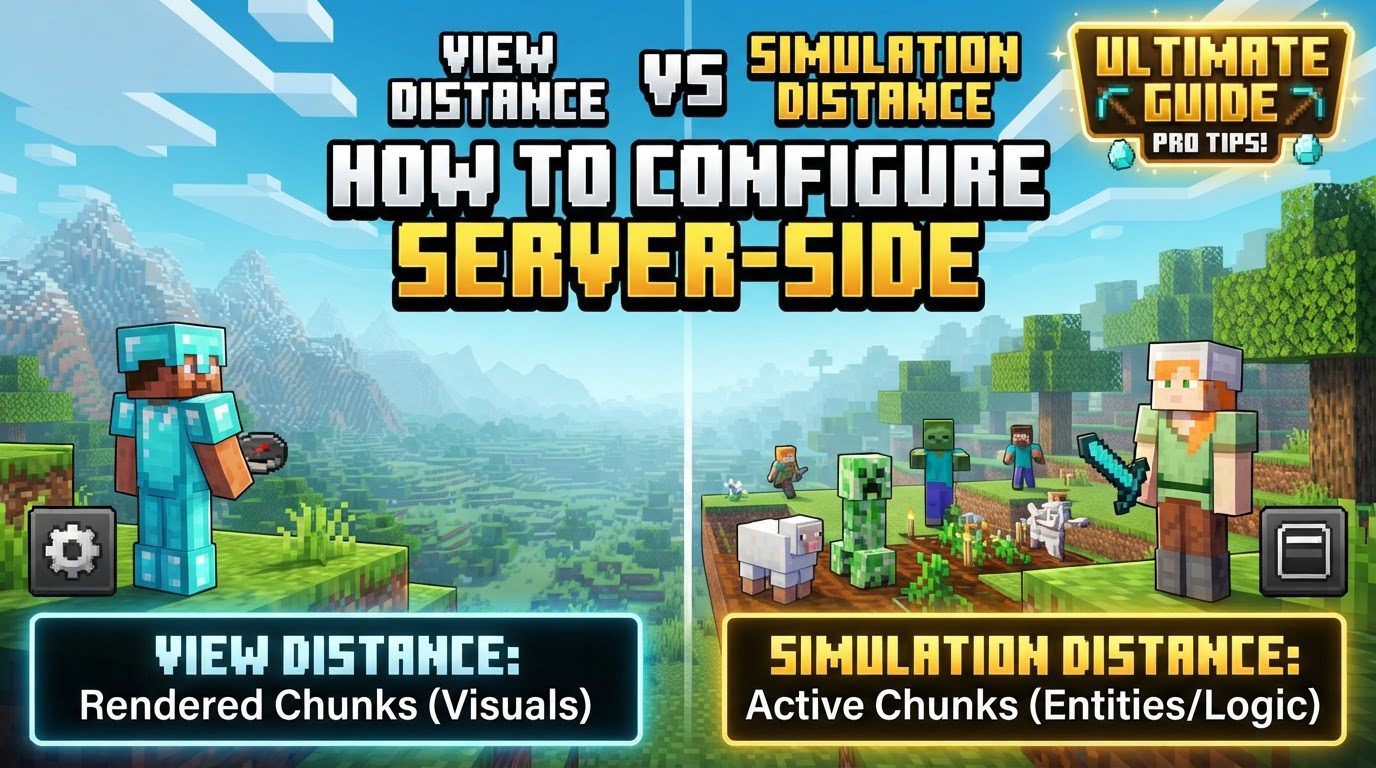
View Distance controls how far players can visually see the world around them, measured in chunks (16×16 block sections). A higher view distance sends more world data to the client, improving immersion but increasing memory and CPU usage on the server. The server’s view distance acts as a maximum cap for a player’s render distance, overriding individual client settings if the server’s value is lower.
Understanding Simulation Distance
Simulation Distance dictates how far from a player the server actively processes in-game mechanics. This includes mob spawning and AI, crop growth, redstone circuits, fluid movement, and other “ticking” systems. It directly impacts CPU usage; higher values mean more processes running, leading to increased server load. Everything within the simulation distance is also rendered.
Step-by-Step Configuration Process
Modifying these crucial server settings requires a specific sequence of steps to ensure the changes are applied correctly. Follow this process carefully to adjust your server’s view and simulation distances:
- Stop your Minecraft server. Settings cannot be modified while the server is running.
- Access your server’s configuration files. This is typically done through your server host’s control panel by navigating to “Files” or “Config Files.”
- Locate the
server.propertiesfile. This file contains the server’s main configuration options. - Find
view-distanceandsimulation-distancefields. - Enter your desired values in chunks. The default for both is often 10. Valid options generally range from 1 to 32.
- Save the
server.propertiesfile. - Start your server to apply the new configuration.
Important Tips for Optimization
Achieving the ideal balance between server performance and an enjoyable player experience is key. Here are some important tips to guide your configuration choices:
- Balance performance and experience: Lower values reduce resource usage and improve performance, especially on servers with limited resources or many players. Higher values offer better visibility and active gameplay but at the cost of increased CPU and memory.
- Simulation distance lower than view distance: For optimal performance, set simulation distance equal to or, more ideally, lower than view distance. This allows players to see further visually without the server actively processing game mechanics in those distant, unseen chunks, reducing processing overhead.
- Recommended settings:
- For most servers, a view distance and simulation distance between 5-7 chunks are recommended.
- For servers with 1-5 players and 2-4GB RAM, 8-10 view distance and 6-8 simulation distance can work.
- For 15-30 players with 6-8GB RAM, 5-7 view distance and 4 simulation distance might be appropriate.
- Monitor performance: After making changes, use commands like
/tps(ticks per second) or/timings(Paper/Spigot) to assess server performance and adjust as needed. - Modded servers: Heavily modded servers may require lower simulation distances (e.g., 5-7 chunks) due to more active entities.
Common Mistakes to Avoid
While configuring view and simulation distances can significantly improve your server, several common pitfalls can lead to performance issues or unexpected behavior. Being aware of these mistakes can help you avoid frustration and ensure a smoother experience:
- Setting values too high: Maxing out view and simulation distances significantly increases server load, leading to lag or crashes, especially with multiple players.
- Not saving or restarting: Changes made to
server.propertieswill not take effect until the file is saved and the server is restarted. - Client-side render distance confusion: Players’ client-side render distance settings are capped by the server’s view distance. If the server is set to 6 chunks, a player with a client setting of 16 chunks will only see 6.
- Ignoring
spigot.yml(for Spigot/Paper servers): If using server types like Spigot or Paper,view-distanceandnon-ticking-view-distancesettings inspigot.ymlor similar configuration files might override or interact withserver.propertiessettings. - Simulation distance too low: A very low simulation distance can cause automated farms, redstone contraptions, or mob spawning to stop working effectively when players move a short distance away.
Tags:
YOU MAY ALSO LIKE...