How to set up cross-platform play between Java and Bedrock
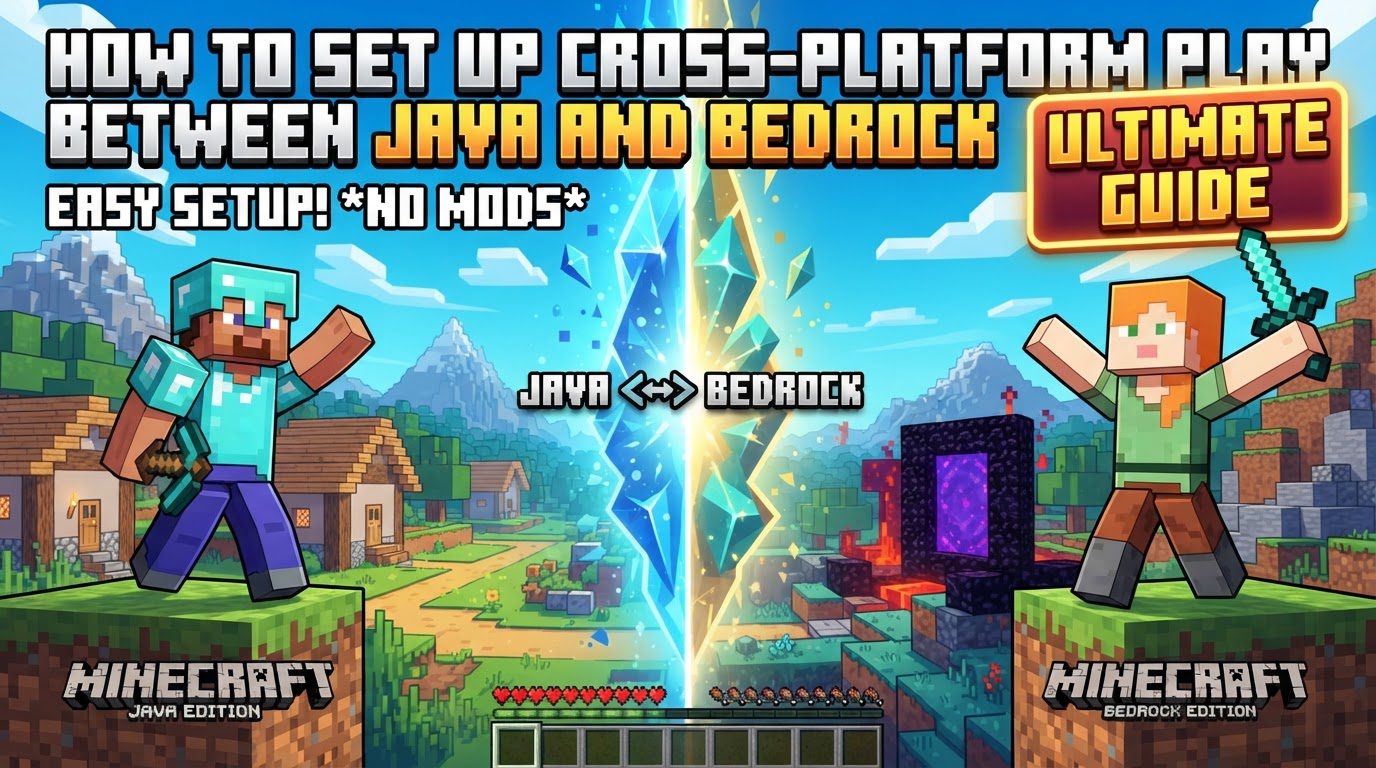
Minecraft offers an expansive world of adventure, creativity, and exploration. While two primary editions exist – Java Edition for PC and Bedrock Edition available across various platforms – playing together traditionally requires both players to be on the same edition. However, a powerful solution exists to bridge this gap, allowing Java and Bedrock players to seamlessly interact on a single server. This guide will walk you through the process of setting up cross-platform play using GeyserMC and its essential companion, Floodgate.
Understanding the Core Components
To facilitate cross-platform play between Minecraft Java and Bedrock editions, the most common and effective method relies on a specialized proxy plugin system.
- GeyserMC: This innovative plugin acts as a crucial bridge between the two distinct editions of Minecraft. Its primary function is to translate network packets. When a Bedrock Edition client attempts to connect to a Java Edition server, GeyserMC intercepts the Bedrock client’s network data and translates it into a format that the Java server can understand. Conversely, it translates the Java server’s responses back into a Bedrock-compatible format. This intricate process allows Bedrock players to connect to and interact with a Java server as if they were native Java players, making true cross-play possible.
- Floodgate: While GeyserMC handles the network translation, Floodgate addresses a critical aspect of server entry: authentication. This companion plugin is specifically designed to manage authentication for Bedrock players. Typically, a Java server requires players to authenticate with a purchased Java Edition account. Floodgate bypasses this requirement for Bedrock players, allowing them to join the Java server by authenticating with their existing Microsoft or Xbox account. Without Floodgate, Bedrock players on an online-mode server would generally need a Java account to authenticate, which defeats the purpose of enabling cross-play for many. Therefore, Floodgate is strongly recommended, almost essential, for a smooth and accessible cross-play experience.
Step-by-Step Setup Process
Setting up your cross-platform server involves a series of sequential steps, ensuring each component is correctly installed and configured.
- Set up a Java Server: Your journey begins with establishing a Java Edition server. It is imperative that this server supports plugins. Vanilla Java servers do not have the necessary functionality for this method. Popular server software like Paper or Spigot are ideal choices due to their robust plugin support and performance optimizations. Many reputable hosting providers offer simplified setups for these server types, often including one-click installers for common plugins.
- Download GeyserMC and Floodgate: Once your Java server foundation is ready, you need to acquire the essential plugins. Navigate to the official GeyserMC website to download the latest stable versions of both GeyserMC and Floodgate. It is crucial to select the versions that are compatible with your specific server software (e.g., Paper, Spigot, Fabric) and your Minecraft server version.
- Install Plugins: With the `.jar` files for GeyserMC and Floodgate downloaded, the next step is installation. Access your server’s file directory and upload these `.jar` files into the designated `plugins` folder. If you are using a Fabric or Forge server, the files would typically go into the `mods` folder instead.
- Initial Server Start and Stop: After placing the plugin files, start your server. Allow it to fully boot up. This initial startup is critical as it generates the necessary configuration files for both GeyserMC and Floodgate within your server’s directory structure. Once the server has fully loaded and the configuration files are created, stop the server. This ensures that any subsequent manual configuration changes are applied correctly.
- Configure GeyserMC: Now, you’ll delve into the configuration files. Locate the GeyserMC configuration file, which is typically named `config.yml` and can be found within the `plugins/Geyser-` or `config/Geyser-` folder, depending on your server software. The most vital setting here is the Bedrock Port. You must ensure a dedicated UDP port is configured for Bedrock connections. The default port is commonly 19132, but your hosting provider might assign a different one. Regardless of the number, this specific UDP port must be open in your server’s firewall or hosting panel to allow incoming Bedrock connections.
- Configure Floodgate: Next, address Floodgate’s configuration. Open Floodgate’s configuration file. Within this file, verify or set the `auth-type` parameter to `floodgate`. This setting is crucial as it instructs Floodgate to handle the authentication process for Bedrock players, allowing them to join without a Java Edition account.
- Adjust `server.properties`: For Minecraft versions 1.19.1 and newer, an additional crucial step is required to prevent Bedrock players from being kicked. Open your server’s main `server.properties` file. Locate the setting `enforce-secure-profile` and set its value to `false`. Failing to make this adjustment will result in Bedrock players being immediately disconnected upon attempting to join.
- Restart Server: After making all the necessary configuration changes to GeyserMC, Floodgate, and `server.properties`, it is essential to perform a full server restart. This action ensures that all the modified settings are loaded and applied correctly, activating the cross-platform functionality.
- Connect: With your server successfully restarted and configured, players can now connect:
- Java Players: They will connect to the server as they normally would, using the server’s standard Java IP address and the default TCP port (typically 25565, unless otherwise specified).
- Bedrock Players: To join, Bedrock players need to add an external server within their game client. They will use the server’s main IP address, but critically, they must use the specific Bedrock port that you configured for GeyserMC (e.g., 19132, or the one assigned by your host).
Important Tips for a Seamless Experience
To optimize your cross-platform server and avoid common pitfalls, consider these important recommendations:
- Always Use Both GeyserMC and Floodgate: For the best compatibility, authentication, and overall experience, it is highly recommended to use both plugins together. GeyserMC handles the core translation, while Floodgate ensures Bedrock players can authenticate easily.
- Leverage Hosting Provider Resources: If you are using a hosting provider, check their documentation or control panel. Many providers offer one-click installers for GeyserMC or provide specific guides tailored to their platform, which can simplify the setup process considerably.
- Understand Port Requirements: Be acutely aware that GeyserMC requires a separate UDP port for Bedrock connections. This is distinct from the Java Edition’s default TCP port (25565). Ensure this UDP port is correctly configured and open in your server’s firewall or hosting provider settings.
- Verify Configuration in Console: After starting your server, always check the console output. Look for confirmation messages from GeyserMC, such as “Started Geyser on UDP port [port number],” to confirm that it has initialized correctly on the intended port.
- Consider Version Compatibility Plugins: To further enhance accessibility, you might consider installing `ViaVersion` and `ViaBackwards` plugins. These plugins allow players using different Minecraft versions (within reasonable limits) to connect to your server, expanding your potential player base.
Common Mistakes to Avoid
Even with careful planning, certain issues can arise. Being aware of these common mistakes can save you significant troubleshooting time:
- Not Installing Floodgate: This is a frequent oversight. Without Floodgate, Bedrock players connecting to an online-mode Java server will typically be prompted for a Java Edition account for authentication. This negates one of the primary benefits of using GeyserMC for cross-play, as most Bedrock players won’t possess a Java account.
- Incorrect Port Configuration: One of the most common reasons Bedrock players cannot connect is an incorrect port setup. Using the wrong port number for Bedrock players, or failing to ensure that the designated Bedrock UDP port is open in the server’s firewall, will prevent any connections from Bedrock clients.
- Forgetting `enforce-secure-profile=false`: For Minecraft Java Edition versions 1.19.1 and newer, failing to set `enforce-secure-profile` to `false` in your `server.properties` file will lead to Bedrock players being immediately kicked from the server upon joining due to profile validation issues.
- Expecting Client-Side Mod Compatibility: While GeyserMC supports server-side Fabric and NeoForge, it’s crucial to understand that client-required mods or modpacks will not work for Bedrock players. Bedrock clients do not understand Java Edition mods. Server-side mods may have varying levels of compatibility; plugins are generally more robust and compatible for cross-play.
- Assuming Identical Gameplay: Although GeyserMC does an excellent job, there can be minor differences in gameplay mechanics between Java and Bedrock Edition. These might include nuances in combat timing, slight variations in redstone behavior, or issues with custom skins and certain server features like clickable chat links for Bedrock players. Manage expectations regarding absolute parity.
- Performance and Anti-Cheat Challenges: Implementing GeyserMC can introduce a slight performance overhead on your server due to the ongoing translation process. Furthermore, many anti-cheat systems designed for Java Edition servers may not fully support Bedrock players. This can lead to false positives, where legitimate Bedrock players are flagged as cheaters, or conversely, it might allow actual cheaters from the Bedrock side to bypass anti-cheat measures more easily.
- Using Outdated Software: Always ensure that both your Minecraft server software (Paper, Spigot, etc.) and the GeyserMC/Floodgate plugins themselves are kept up to date. Outdated versions can lead to compatibility issues, bugs, security vulnerabilities, and a lack of support for newer Minecraft features, severely impacting functionality.
By diligently following these steps and being mindful of the common pitfalls, you can successfully set up a cross-platform Minecraft server, uniting your Java and Bedrock friends in a shared world of adventure.
Tags:
YOU MAY ALSO LIKE...