How Minecraft supports accessibility features for disabled players
Many players, even veterans, might not realize the depth of accessibility features thoughtfully integrated into Minecraft. Far from being an afterthought, these tools are designed to ensure that the joy of crafting, exploring, and surviving in its blocky worlds is available to a broader audience, including those with various disabilities. Both Java and Bedrock editions of the game offer a robust suite of options, allowing players to tailor their experience to their specific needs, proving that inclusive design can seamlessly blend with immersive gameplay.
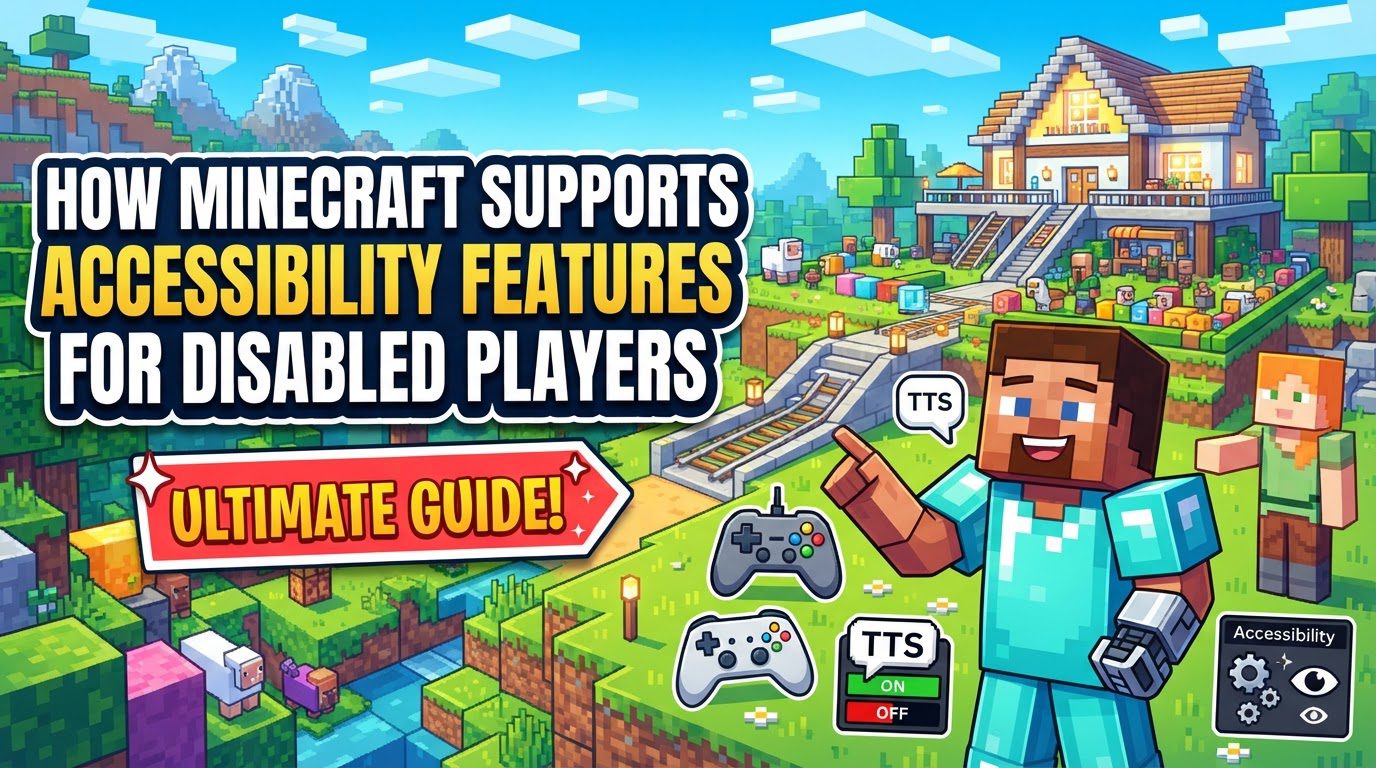
This guide delves into the specifics of how Minecraft empowers disabled players through its built-in accessibility settings and even explores significant third-party enhancements. From auditory aids to visual adjustments and control reconfigurations, the game strives to remove barriers, fostering a more inclusive and enjoyable environment for everyone.
Unlocking Your World: Navigating Accessibility Settings
Accessing Minecraft’s accessibility features is straightforward, designed to be intuitive for all players. Whether you’re launching the game for the first time or deep into an adventure, these options are readily available:
- From the main title screen, locate and select the “Accessibility” icon. This is often represented by a universal accessibility symbol.
- Alternatively, you can navigate through the menus by selecting “Options” and then proceeding to “Accessibility Settings”. This path is available from both the title screen and the in-game pause menu, allowing for adjustments on the fly without needing to exit your world.
Once inside the Accessibility menu, you’ll find a centralized hub for toggling and fine-tuning various settings that can dramatically alter your gameplay experience.
Auditory and Textual Support: Hearing and Reading the World
For players who are deaf, hard of hearing, or those who benefit from auditory cues, Minecraft provides critical features to ensure information is conveyed effectively.
- Narrator/Text-to-Speech: This powerful feature provides auditory feedback for crucial game elements. It can be configured to narrate everything on screen, focus solely on chat messages, or only announce system notifications. This ensures that menu navigation, important game events, and communication with other players are accessible through sound. For Java Edition players, there’s even a handy hotkey, ‘Ctrl + B’, to quickly toggle the Narrator on or off, provided the hotkey is enabled.
- Closed Captions/Subtitles: Beyond just text, Minecraft’s closed captions display on-screen text that describes sounds happening within the game. Crucially, they also include visual cues indicating the type and direction of these noises. This means a player can “see” a zombie groaning nearby or a chest opening, providing vital sensory information that might otherwise be missed.
- Text Background & Opacity: To improve readability for players with visual processing challenges or certain visual impairments, Minecraft allows you to add a background behind text. The opacity of this background is fully adjustable, enabling players to find the perfect balance between text visibility and screen clutter.
- Chat Text Style Formatting: Customization extends to how text appears in chat. Players can adjust the size and color of chat text, making it easier to read and distinguish from the game world, which is particularly beneficial for those with specific visual needs or dyslexia.
- Adjustable Audio Channels (Bedrock Edition): Bedrock Edition offers granular control over various audio channels. This means players can independently adjust the volume of music, sound effects, ambient sounds, and speech, allowing them to prioritize important audio cues or reduce overwhelming sonic environments.
Visual Customization: Seeing Your Way
Minecraft’s visual settings are highly customizable, allowing players to adapt the game’s display to suit their comfort and needs, addressing issues like motion sickness or visual strain.
- GUI Scale: The Graphical User Interface (GUI) scale is a fundamental setting that controls the size of menus, inventory screens, and the heads-up display (HUD) elements. Players can increase or decrease this scale to make text and icons larger and easier to see, or smaller for a less cluttered view, accommodating different screen sizes and visual acuities.
- Reduce/Disable Visual Effects: Certain visual effects in games can be disorienting or even triggering for some players. Minecraft provides options to reduce the intensity of, or entirely disable, specific visual effects. This can include anything from particle effects to screen shakes, creating a calmer visual experience.
- Camera Bobbing: The default camera movement in Minecraft simulates a player’s head bobbing while walking or running. While intended for realism, this effect can induce motion sickness in sensitive individuals. Disabling camera bobbing provides a stable, fixed camera perspective, significantly improving comfort for many players.
Empowering Control: Tailoring Your Interaction
How players interact with the game world is paramount, and Minecraft offers extensive control customization to accommodate various physical abilities and preferences.
- Control Customization (Key Binds): Perhaps one of the most crucial accessibility features, players can rebind virtually every in-game action to a key or button of their choice. This allows individuals to create a control scheme that is comfortable and efficient for them, whether they use a standard keyboard and mouse, a specialized controller, or assistive input devices.
- Mouse Settings: Beyond key binds, mouse sensitivity and scroll sensitivity are adjustable. This is vital for players who may have fine motor control challenges, allowing them to reduce sensitivity for more precise movements or increase it for faster reactions with minimal physical effort. A “Touchscreen Mode” can also be enabled to mimic touch controls, beneficial for certain setups or input methods.
- Auto-Jump: This simple yet effective feature automatically jumps the character when they move towards a block that can be climbed. It reduces the need for precise timing and additional button presses, easing navigation for players who might find repetitive jumping difficult.
- Sprint & Sneak Toggles: Instead of requiring players to hold down a key to sprint or sneak, these options allow for a toggle functionality. Pressing the key once activates the action, and pressing it again deactivates it. This significantly reduces strain and improves comfort for players who struggle with sustained key presses.
- Toggleable Click Actions (Java Edition): Recent additions to Java Edition include the ability to toggle “Attack/Destroy” and “Use Item/Place Block” actions. This means a single click will initiate and sustain the action (e.g., continuously mining a block or placing multiple blocks) until clicked again. This effectively provides an in-game auto-clicker, greatly benefiting players who have difficulty with repetitive clicking or sustained button presses.
- Accessible Menu Navigation: Navigating complex menus can be a hurdle. Minecraft ensures accessibility by allowing full menu navigation using keyboard inputs (Tab, Shift+Tab, Arrow Keys, Esc) or controller tools, bypassing the need for a mouse if preferred or necessary.
Going Further: Third-Party Solutions and Inclusive Practices
While Minecraft’s built-in features are extensive, the community also plays a vital role in enhancing accessibility, particularly through modding.
- Minecraft Access (Mod): For Java Edition, the “Minecraft Access” mod stands out as a groundbreaking third-party solution specifically designed for visually impaired and blind players. This mod offers deep screen reader integration, customizable sound cues for various game elements, text-to-speech for all on-screen text, and enhanced navigation assistance using spatial audio. It transforms the game into a truly accessible experience for those with severe visual impairments.
- Adjusting Difficulty: For players facing cognitive challenges or those simply new to gaming, adjusting the difficulty to “Peaceful” eliminates hostile mobs, creating a stress-free environment for exploration and building. Enabling cheats like “always day” can also remove the pressure of night-time survival, making the experience more manageable and enjoyable.
- Community Event Accessibility: Beyond personal settings, organizers of community-run Minecraft events, servers, or educational programs should actively consider accessibility in their planning. This includes evaluating visual and auditory stimuli that might cause discomfort, ensuring build designs incorporate universal design principles (like ramps instead of stairs), and providing clear, multi-modal instructions.
Common Pitfalls and Best Practices for an Inclusive Experience
Despite the available features, certain common mistakes can inadvertently create barriers. Awareness of these can lead to a more universally accessible Minecraft experience.
- Overlooking Built-in Features: A frequent oversight is simply not being aware of the extensive accessibility options already present in the game. Encouraging players to explore the “Accessibility Settings” menu is the first crucial step towards a more comfortable experience.
- Sole Reliance on Color Coding: When creating in-game content, such as custom maps, puzzles, or informative displays, relying solely on color to convey information can exclude colorblind players. Always supplement color with text labels, distinct patterns, or other non-color-dependent indicators.
- Ignoring UI/Text Readability: Neglecting to adjust GUI scale, text backgrounds, or chat font styles can make the game difficult to read for players with visual impairments or those playing on smaller screens. Always consider how text is presented.
- Lack of Directional Indicators on Maps (Bedrock Edition concern): While not a direct accessibility setting, some players have noted that the removal of pointer rotation on maps in Bedrock Edition reduced readability for younger players and those with poor spatial awareness, highlighting how seemingly minor design choices can impact accessibility.
- Designing Without Universal Design Principles: In community creations, educational settings, or custom maps, failing to implement universal design principles (e.g., providing ramps in addition to stairs, ensuring clear visual cues for objectives, offering multiple paths) can exclude players with mobility or sensory challenges. Thinking inclusively during the design phase is paramount.
Minecraft’s commitment to accessibility is evident in its continuously evolving features, offering a wide array of tools to customize the gameplay experience. By leveraging these built-in options and exploring community-driven solutions, disabled players can find their unique way to enjoy the boundless creativity and adventure that Minecraft offers, ensuring that the blocky world is truly open to all.
Tags:
YOU MAY ALSO LIKE...